
Can You Filter Annual Sales in Sales Navigator?
Can we filter annual sales in Sales Navigator? Discover 5 strategies to target high-value leads and boost your sales efficiency today!


On this page
- 01How to filter annual sales in Sales Navigator?
- 02What types of filters are available?
- 03How to use saved searches in Sales Navigator?
- 04What is the benefit of using filters?
- 05How to export leads from Sales Navigator?
- 06How to analyze data using Sales Navigator?
- 07Conclusion
- 08Frequently Asked Questions
- 09Additional Resources
How To Filter Annual Sales In Sales Navigator?
Let’s be real not every company is worth your time. If they don’t have the budget, why are they on your list?
That’s where the Sales Navigator Annual Revenue filter comes in.
This filter changes the game:
✅ Quickly identify high-value leads based on annual sales
✅ Save time by targeting companies that match your ideal customer profile
✅ Boost your sales workflow with precise search results
Ready to leverage the power of Sales Navigator to filter by annual revenue and unlock other advanced techniques along the way?

How to filter annual sales in Sales Navigator?
If a company can’t buy, it shouldn’t be in your pipeline. Period.
The Annual Revenue filter in Sales Navigator cuts straight to what matters budget.
You’re not here to waste time. You’re here to close. This filter shows you which companies have the budget to make real buying decisions.
Just clarity. Just focus. Just real targets with real potential.
Here’s how it works:
1️⃣ Log into Sales Navigator
2️⃣ Click "Account filters" in the search bar
3️⃣ Find "Annual Revenue" under Company attributes
4️⃣ Set your desired range
5️⃣ Click "Add"

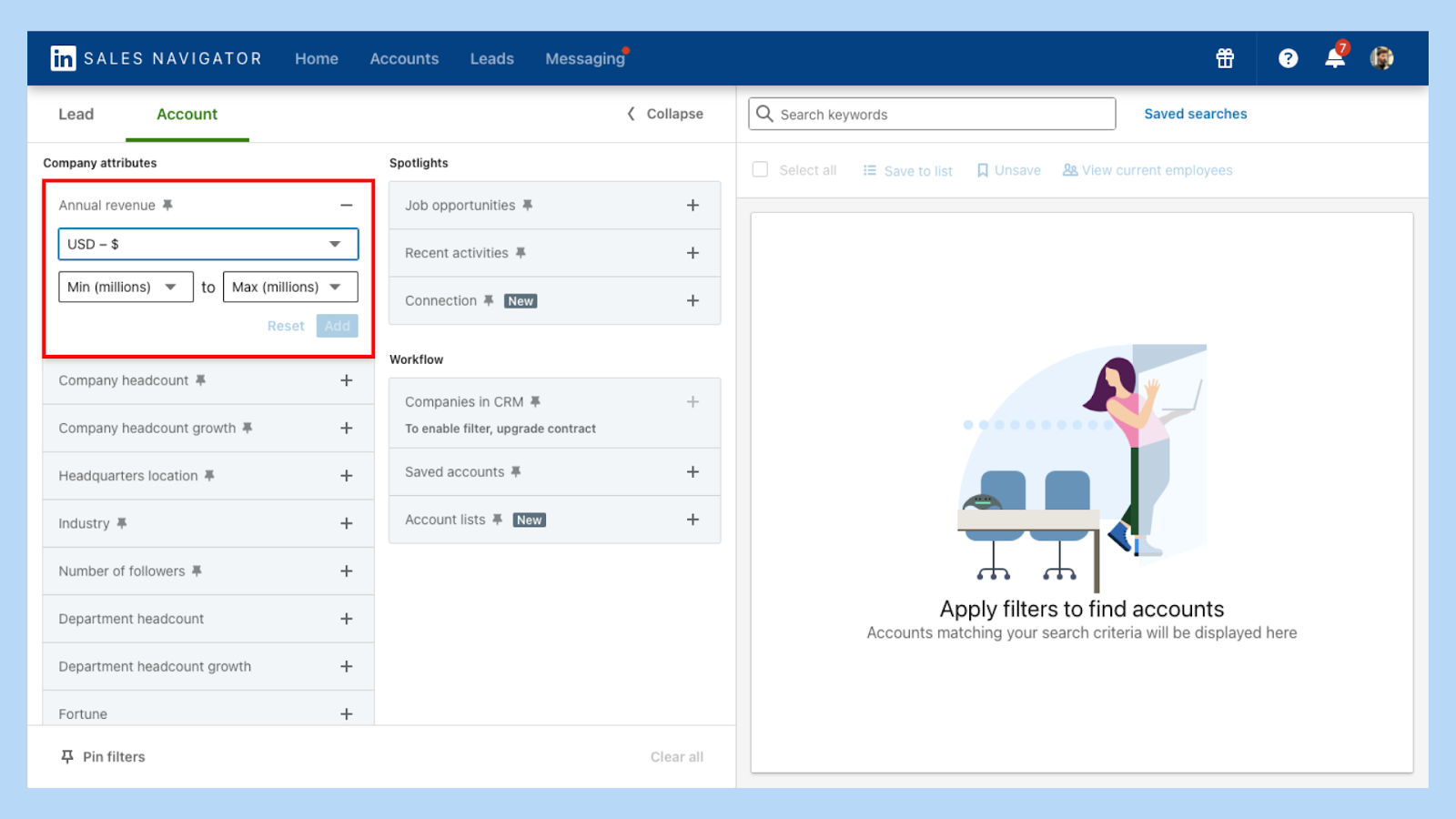
Done. Now your filters are doing the heavy lifting pinpointing companies that can actually afford your product or service, while streamlining your entire sales workflow. That’s smarter prospecting, right there.
Pro Tip: Combining the annual revenue filter with industry and company size delivers sharper lead targeting.
What types of filters are available?
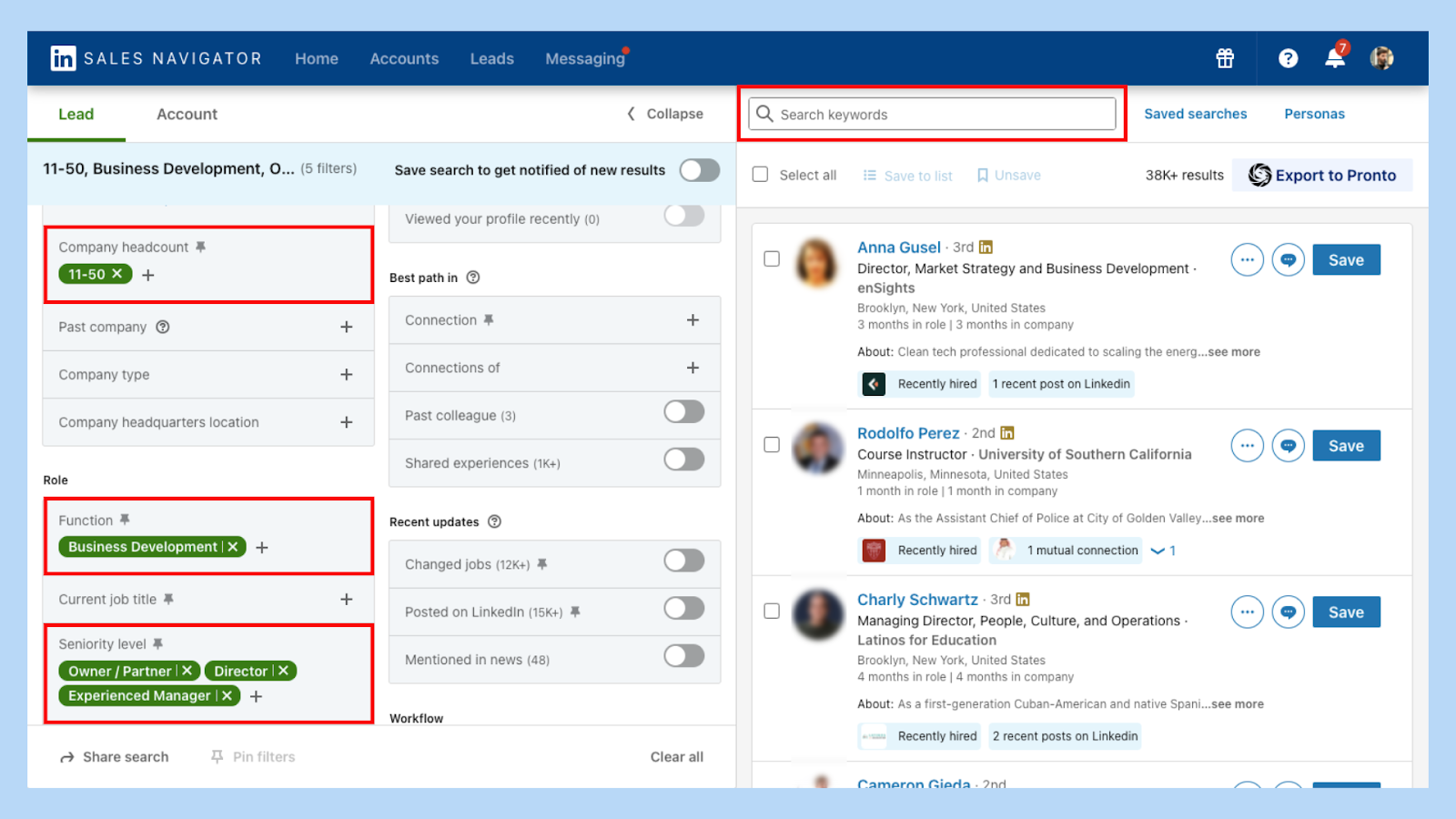
Sales Navigator packs over 30 advanced filters and every single one is built to refine your prospecting. These filters help you identify both companies and leads that align with your ideal customer profile.
Sales Navigator Filters Overview
Pro Tip: Want to catch buyers at the perfect time? Combine "Years in Current Position" with "Seniority Level" to spot leads who are more open to change.
Mastering these filters isn't optional it's how you get in front of the right people, faster. Each one lets you tighten your focus, boost relevance, and increase your chances of getting a response that matters.
Pro Tip: If you’re aiming for relevance? The Content Keywords filter shows you who’s already thinking about the kind of solutions you offer.
The more intentional your filters, the stronger your results.
How to use saved searches in Sales Navigator?
Save Searches = Save Time
Found the perfect combo of filters? Save search to get notified of new results.
Here's how to do it:
- After setting up your search, click "Save Search"
- Give it a name for easy reference
- Set alert frequency for new lead matches
- Access all saved searches under your profile
- After running a search, click on Save Search
- Name your saved search for easy reference
- Choose how often you want to receive alerts on new leads that match your criteria
- Access all saved searches in the 'Saved searches'section, found on the right side of the search bar on your Sales Navigator homepage

This way, you never start from scratch. By managing custom lists and saved accounts, you can keep track of potential leads efficiently and stay updated on any changes that might present new opportunities.
Pro Tip: Regularly check back. Tweak filters. Sales strategies and market conditions evolve your search criteria should too.
What is the benefit of using filters?
Why do filters matter? Here’s the thing: Filters are your secret weapons in Sales Navigator. When used right, they do more than just narrow your results.
They help you:
🚀 Narrow Down large pools of potential leads to a manageable list
🎯 Target Potential Leads who are more likely to convert
🔍 Improve Leads Search efficiency by focusing on relevant criteria
👤 Generate Leads that fit your buyer persona and ideal customer profile
⏱ Save time and resources by avoiding unqualified prospects
You're not just finding leads you're building a high-intent pipeline that drives better lead generation results and higher conversion rates.
Pro Tip: Company headcount growth is gold. Fast-growing companies = more needs, more budget. Don't overlook this filter!
How to export leads from Sales Navigator?
Sales Navigator doesn’t let you export leads natively. With the Advanced Plus plan, you can sync lead and account data directly to your CRM.
Want to download lead lists asCSV? Tools like Pipecorn make it happen.
Here’s how it works:
- Install the Pipecorn Chrome extension
- Use Sales Navigator search filters as usual
- Select your leads
- Click "Export to Pipecorn"
- Name your list
- Click"See Leads"on Pipecorn
- Hit the "Download as CSV"button
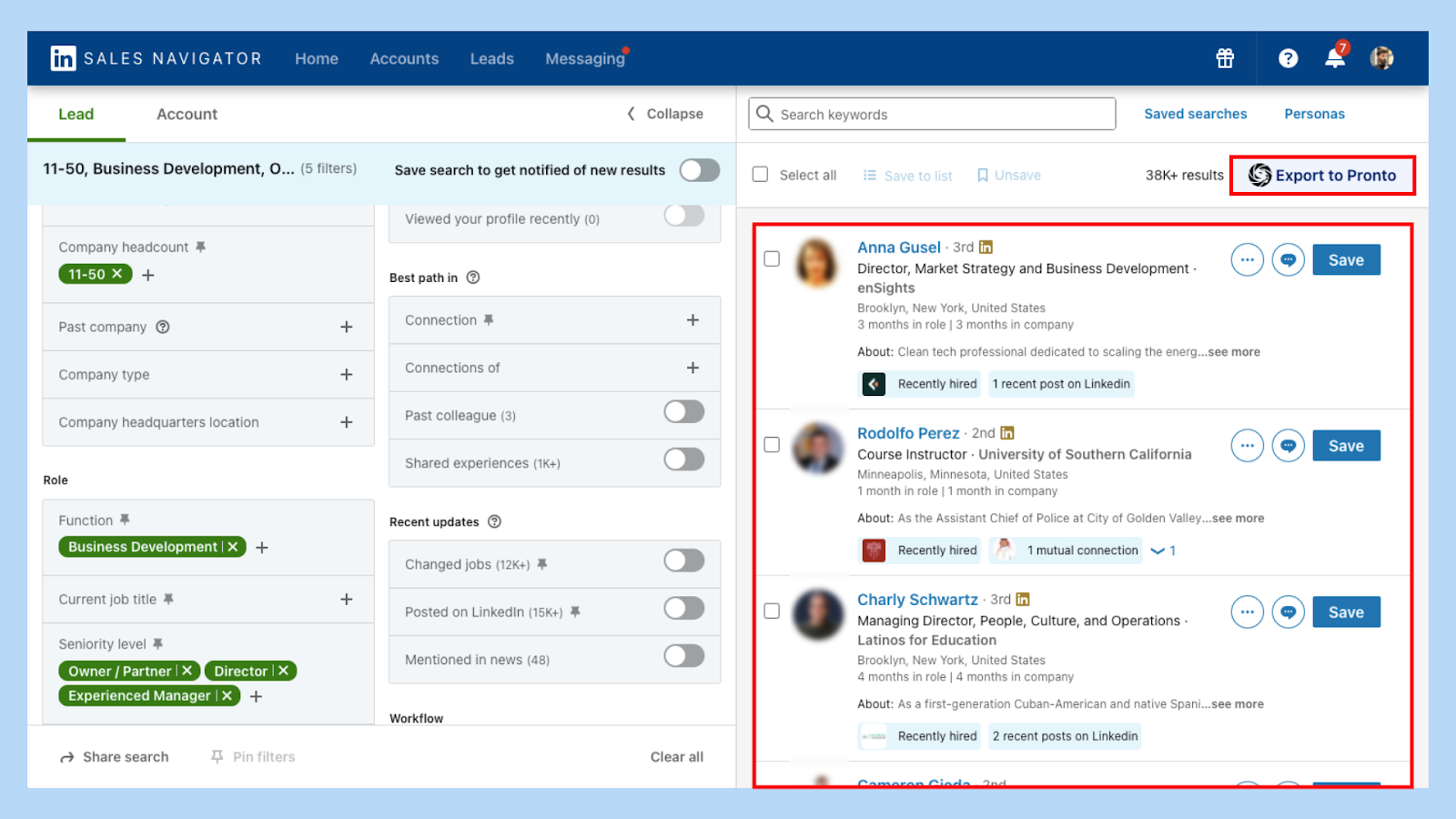
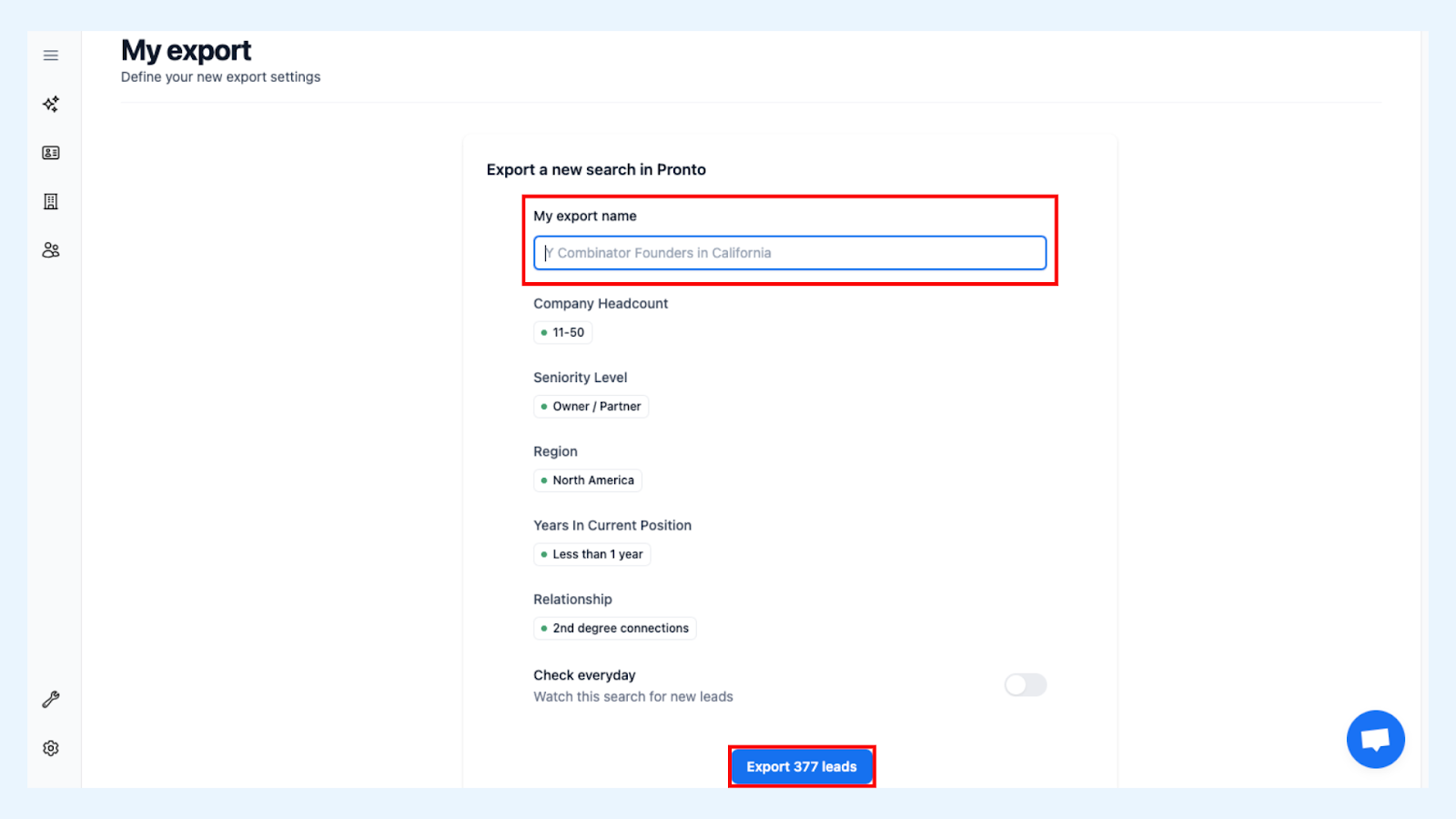

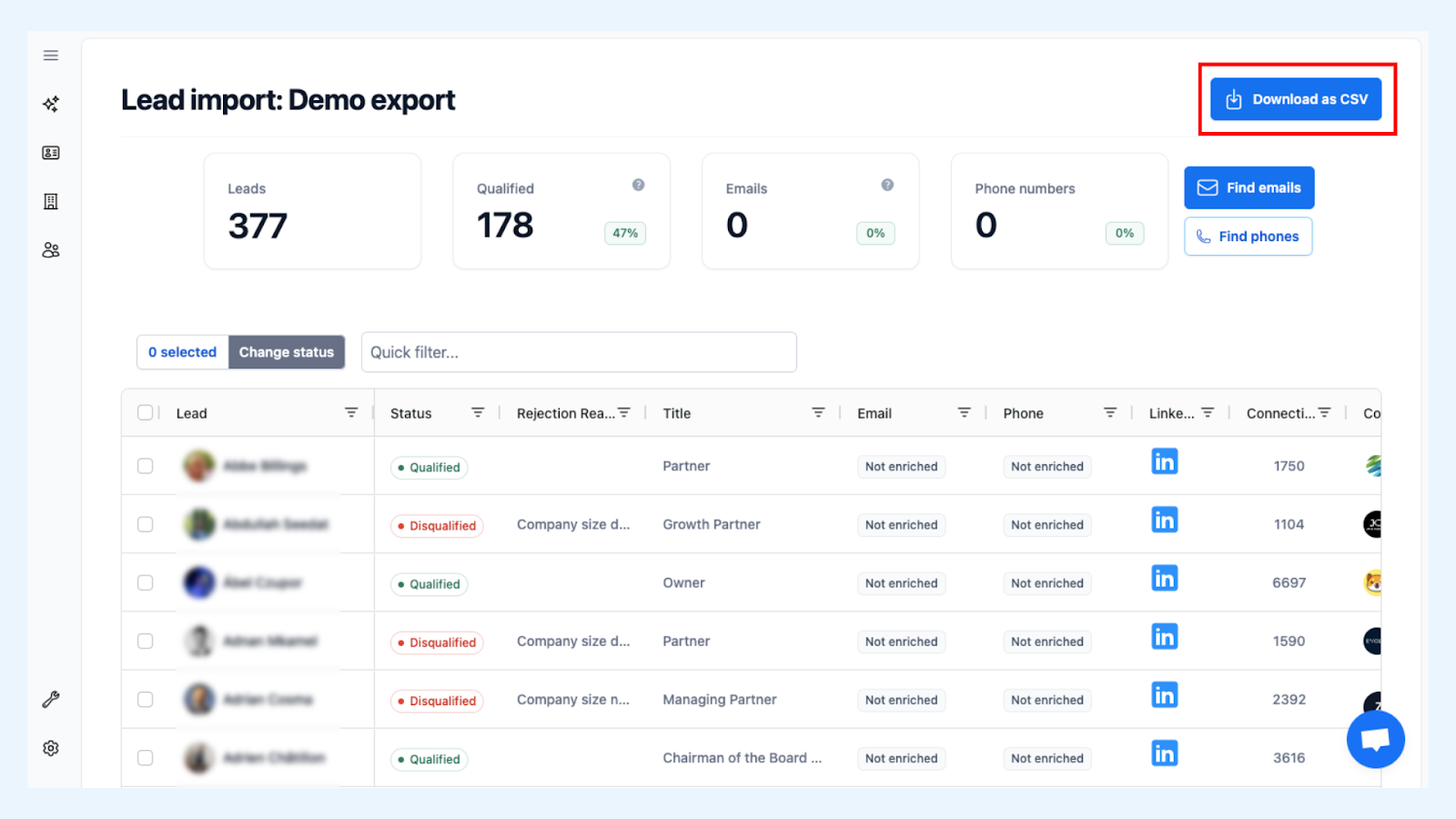
This process boosts your lead generation by letting you tap into Sales Navigator’s rich data outside the platform.
Pro Tip: Refresh exports regularly to catch new leads and avoid missing out on new opportunities.
How to analyze data using Sales Navigator?
Analyzing data is crucial for refining your sales approach. Sales Navigator provides various tools to help you understand and leverage this data.
Here's how to go about it:
- Use the Insights section in your Sales Navigator account.
- Export your lead and account lists as a CSV file.
- Filter based on company attributes like growth, industry, and more.
- Analyze engagement levels with your content or outreach.
- Adjust your strategies based on the insights gained.
By diving into the data, you can tailor your approach to better meet the needs of your prospects, ultimately driving more successful engagements.
Pro Tip: Integrate Sales Navigator with your CRM to streamline data management and keep your team synchronized.
Conclusion
Sales Navigator is more than a search tool. It’s your B2B growth engine if you know how to use it right.
Filters help you find the right accounts. Saved searches keep you efficient. And export tools connect everything together.
But remember tools only work as hard as your strategy. Keep refining your search, stay on top of new features, and experiment with filters that support your sales goals.
Want to take your lead generation even further? Try tools like the LinkedIn Sales Navigator email scraper by Pipecorn. They automate the busywork so you can focus on what really matters building relationships and closing deals.
Pro Tip: Don’t rely on filters alone. Personalize your outreach. Even the perfect list won’t convert if your message is off.
Frequently Asked Questions
Q: Can I save multiple searches in Sales Navigator?
A: Yes, you can create and manage multiple saved searches to keep track of different prospecting criteria.
Q: How often is the data in Sales Navigator updated?
A: The platform continuously updates data as users change their profiles, ensuring you have the most current information.
Q: Can I integrate Sales Navigator with my CRM?
A: Absolutely on the Advanced Plus plan. Integration allows for seamless lead management and improved sales efficiency.
Additional Resources
- Learn more about optimizing Sales Navigator filters.
- Integrate with CRM for efficient lead management
Lead smarter. Prospect faster. Close bigger.
That’s the Sales Navigator advantage.