
How to Upload csv list to LinkedIn Sales Navigator?
Struggling with LinkedIn Sales Navigator upload list? Discover easy steps and essential tips to efficiently manage your leads and boost sales!


On this page
Want to crush your prospecting game on LinkedIn Sales Navigator? 💼
This guide will show you two easy ways to import company and leads lists:
- The LinkedIn Way: Straight-up, using Sales Navigator’s tools.
- The Pipecorn Way: Enrich your data and make it even better before importing. 🚀
Let’s dive in! 😎
Why Import CSV Files into LinkedIn Sales Navigator? 🤔
Importing CSV files into Sales Navigator isn’t just coolit’s a game-changer. Here’s why:
- Bring external data in: Import info from B2B databases, CRMs, job boards, or scraped lists. All your leads in one place. 🎯
- Save time: Stop adding companies manually. Bulk imports = faster targeted account lists. 🚀
- Boost your prospecting: With the right companies in sight, finding decision-makers and personalizing your outreach becomes a breeze. 👋
How to Upload Companies csv into Sales Navigator?
1/ Import accounts with Sales Navigator Advanced
LinkedIn makes it simple to upload a CSV, but you need an Advanced Sales Navigator Subscription :
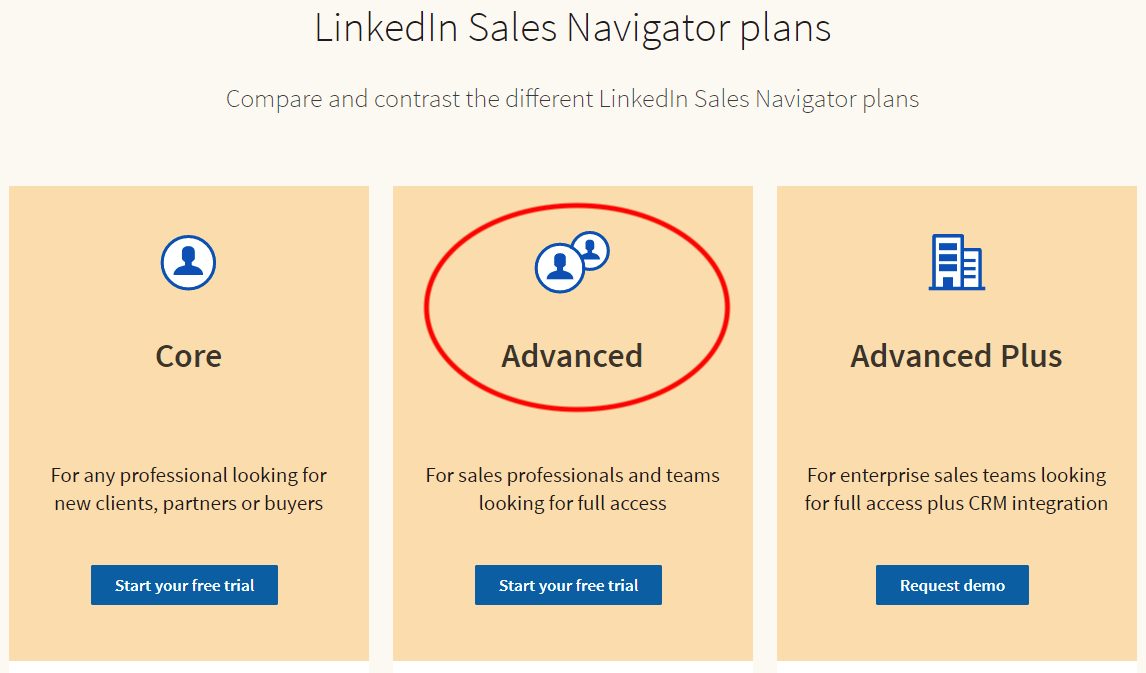
Here’s how:
1. Go to “Account Lists” in Sales Navigator and click "Upload List"

2. Then select "Upload CSV".

🛠️ Pro Tip: Ensure your CSV includes at least “Company Name” and, if possible, website URLs or LinkedIn IDs.
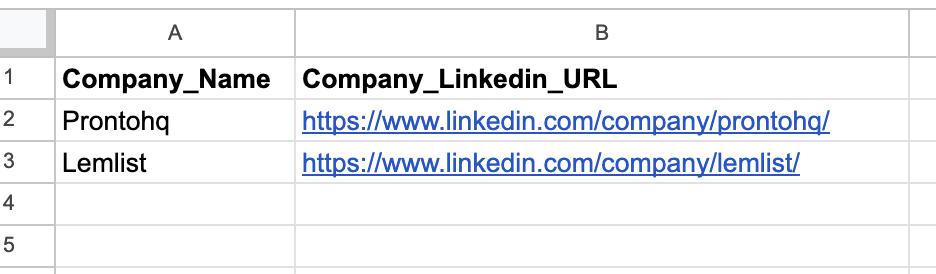
3. Map your columns (match “Company Name” in your file to the right LinkedIn field).
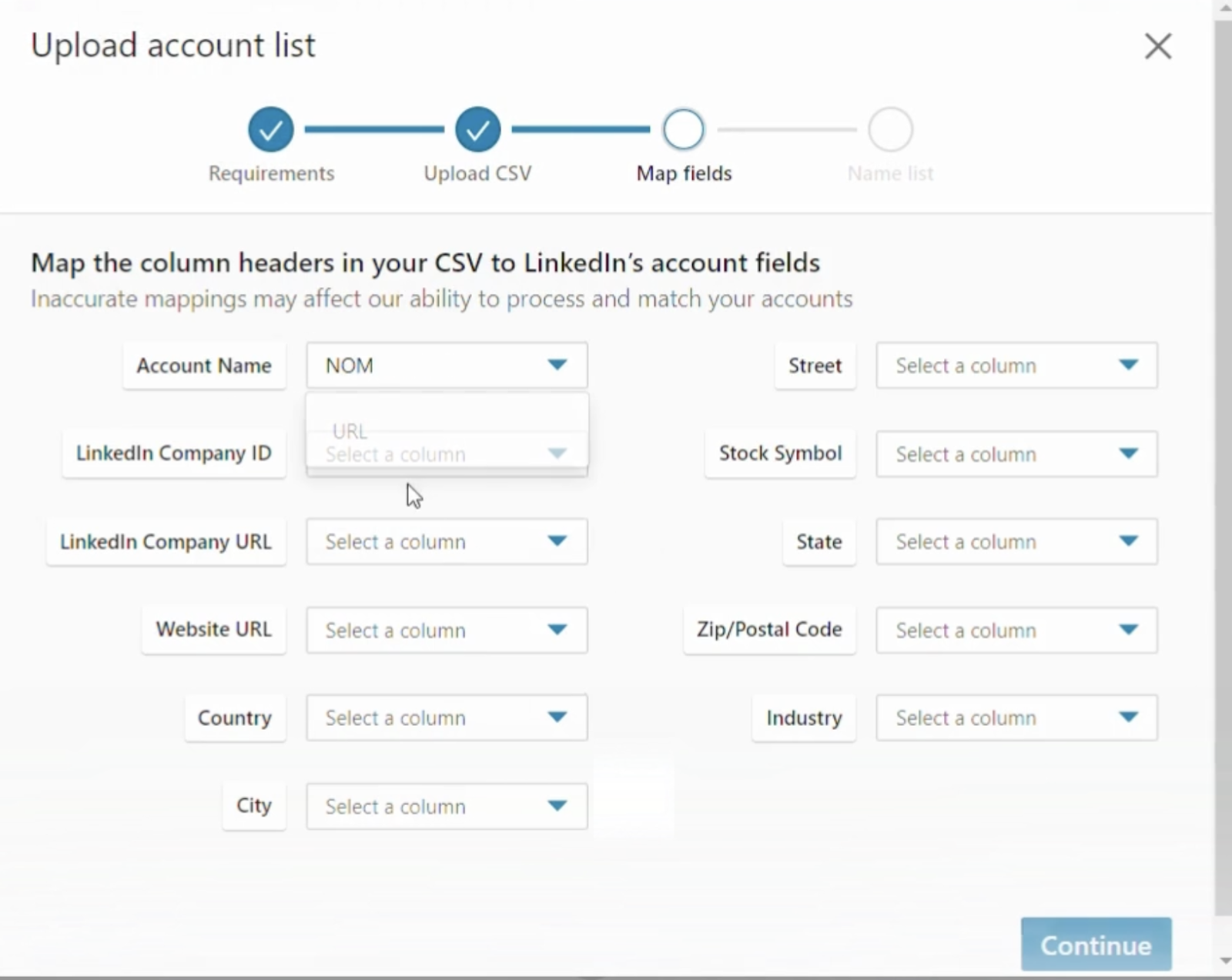
4. Wait a few minutes... or hours...

And voilà! Your list is ready to use.

Well done, you know how to import accounts with Sales Navigator Advanced 🥂

2/ Import accounts with Pipecorn [Smarter] 🚀
Feeling fancy? Use Pipecorn to enrich your data and level up your import game.
The magic of Pipecorn is that it takes you further. You have 2 options:
- Upload from CSV list: Cool, it works just like I showed you on LinkedIn Sales Navigator.
- Upload from Sales Nav URL: No need to scrape companies manually anymore! Just type your target in Sales Navigator, and Pipecorn scrapes the accounts for you. You can then find the associated leads! 🚀
Option 1 : Upload from CSV list
1. Import
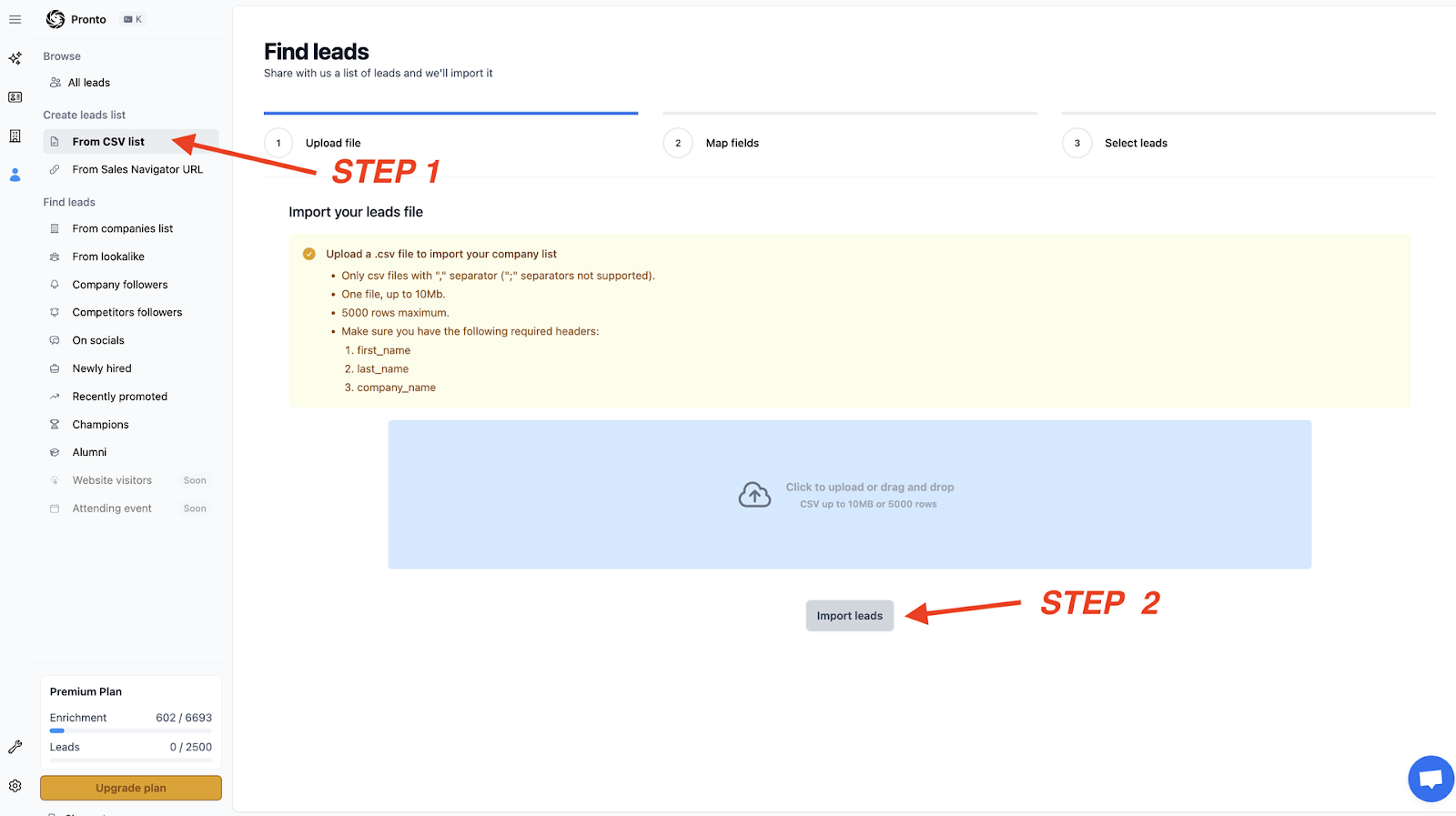
Make sure you have the following required headers:
- company_name
- company_website
- company_linkedin (optional)

2. Mapping

3. Saving list to Linkedin
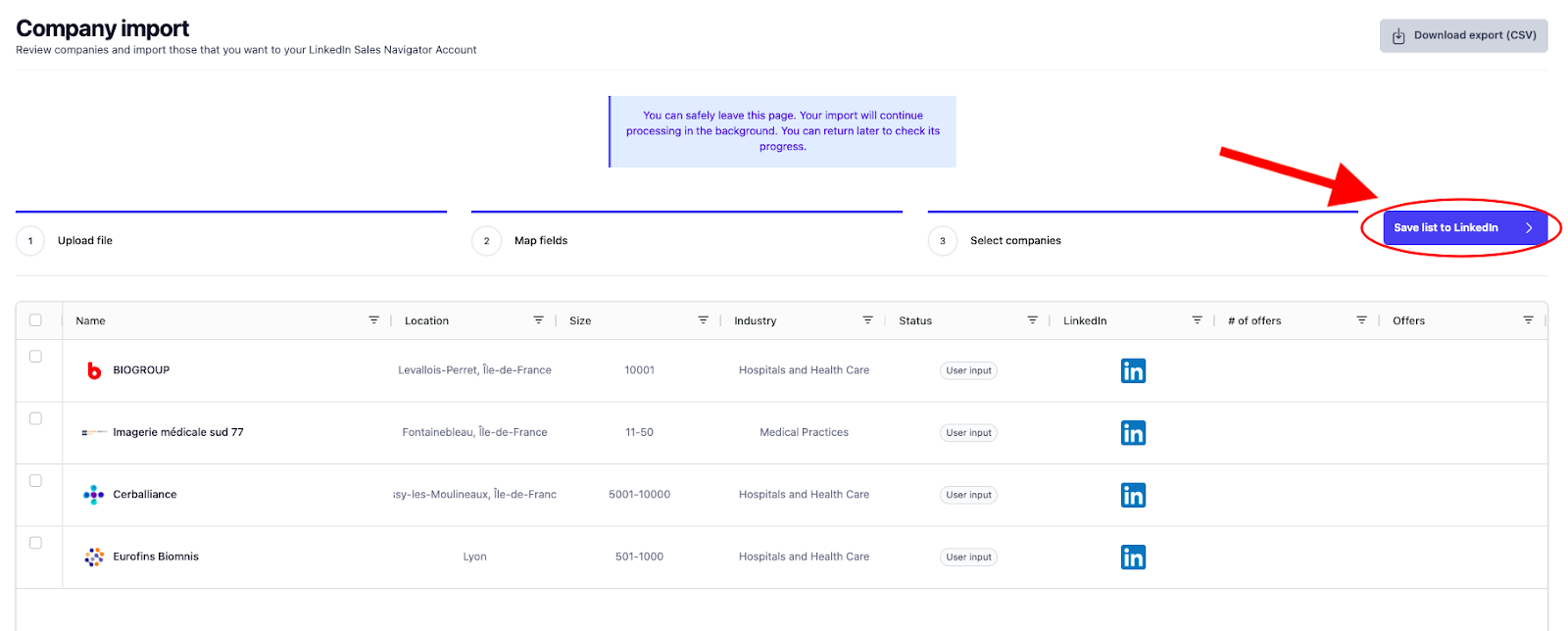
4. Extract Leads
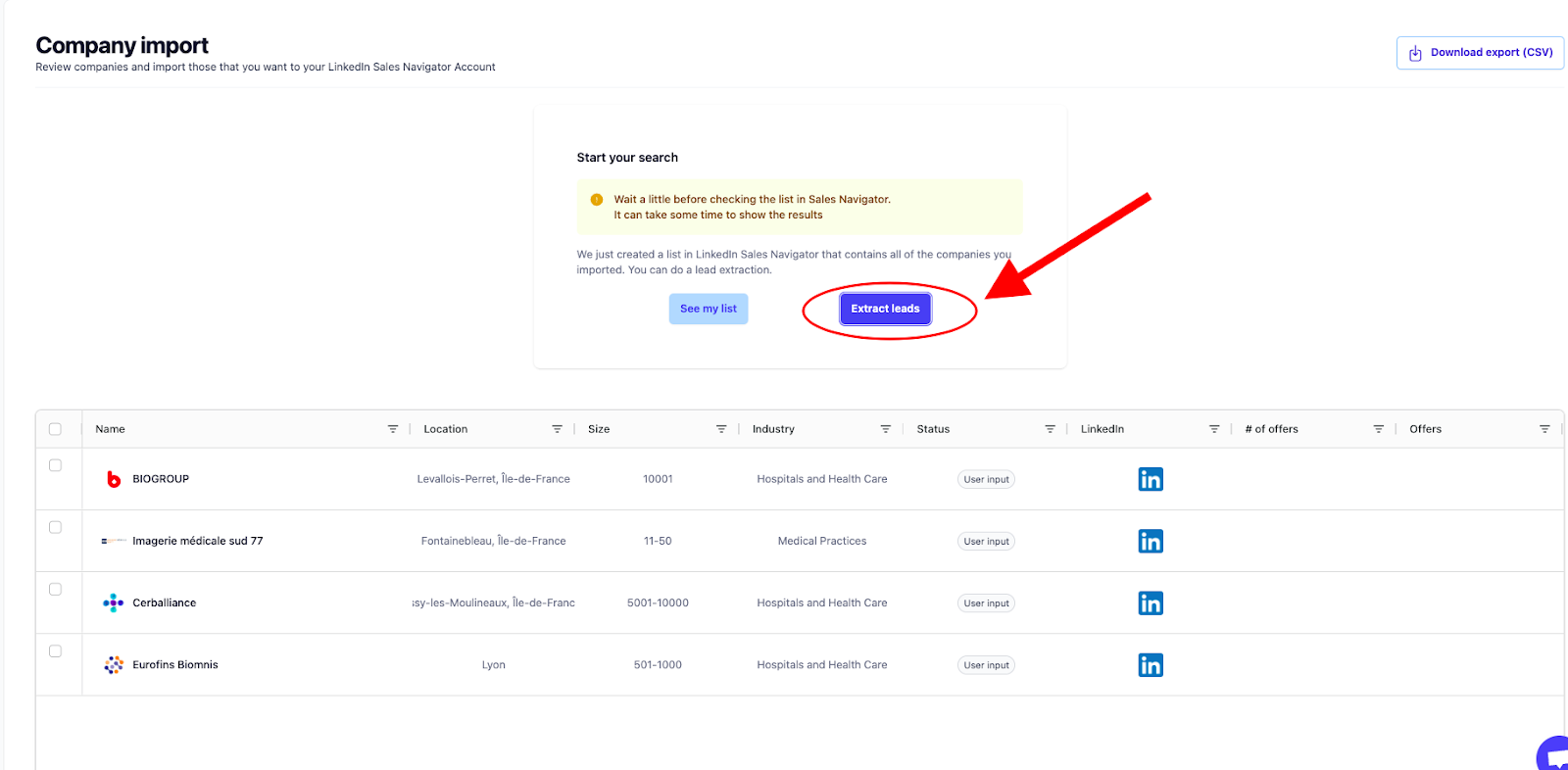
5. Find your leads and export them with Pipecorn 🔥


Option 2 : upload from Sales Nav URL
The process is even simpler:
1. In Sales Navigator, go to the Account section and search for your target. 🔍
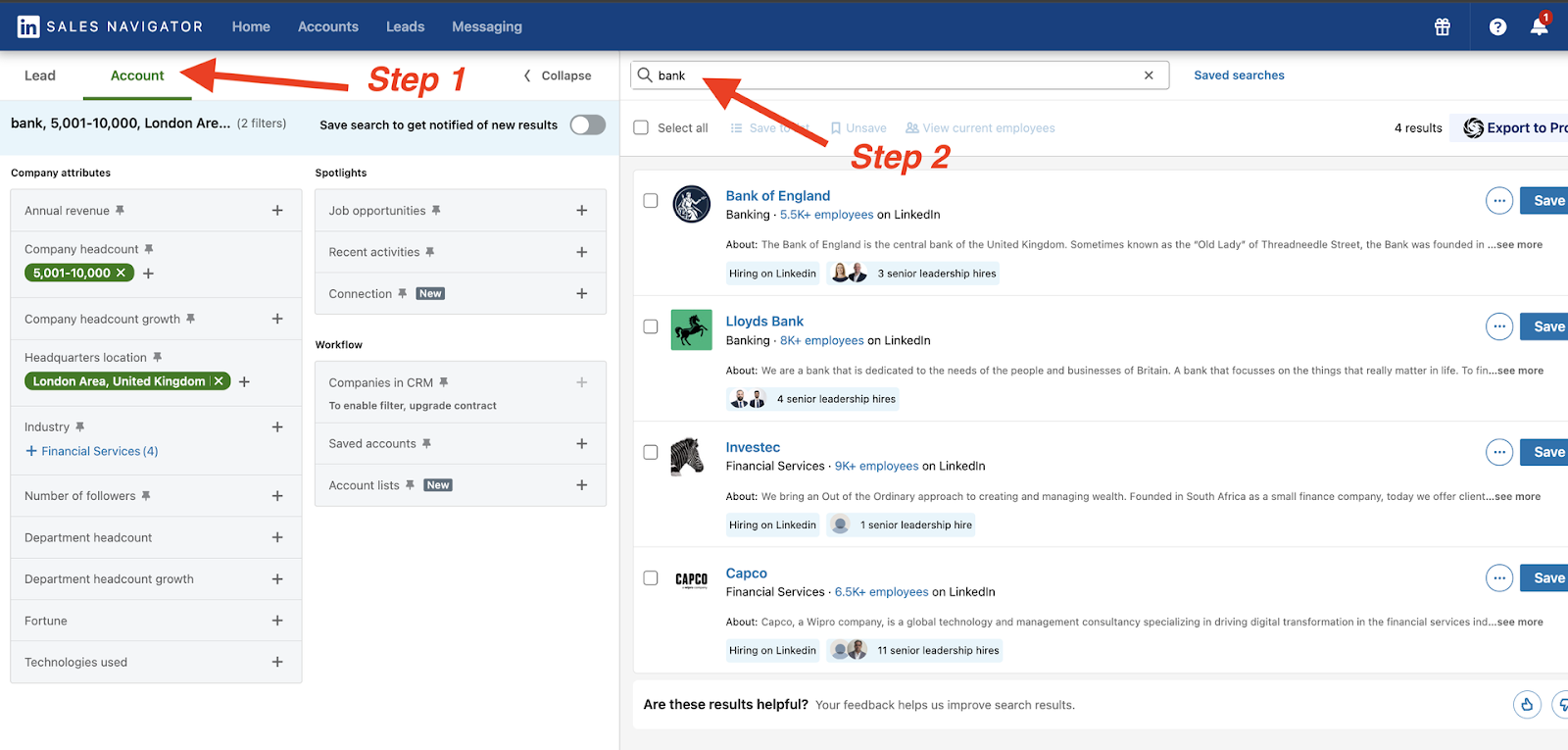
2. You copy the URL link :
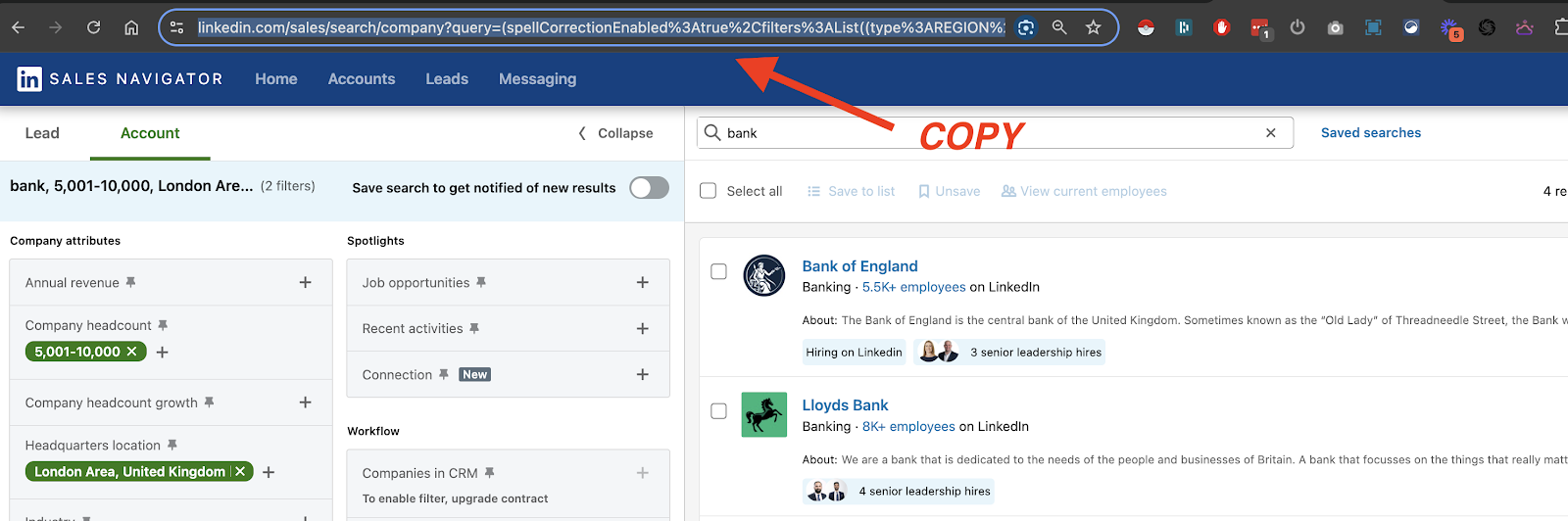
3. Open Pipecorn, go to "From Sales Nav URL", and paste the link. Then, run the search and add the results to your LinkedIn account list.
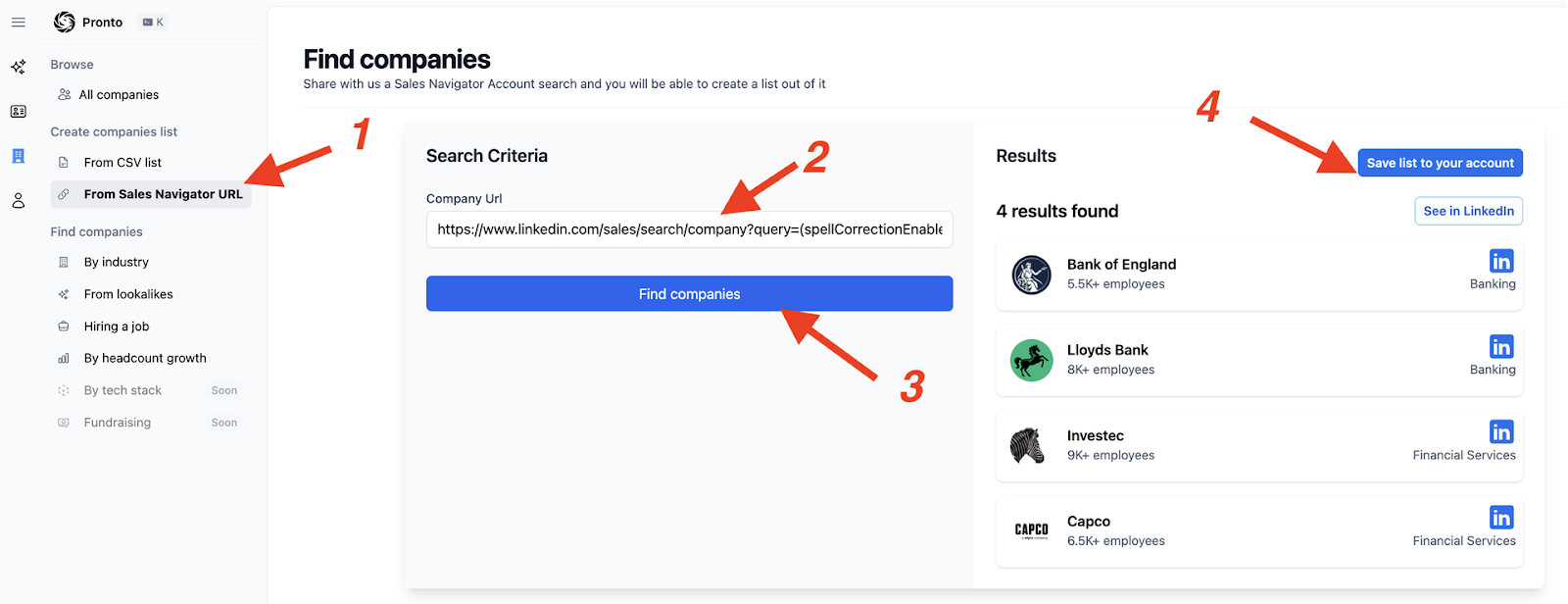
5. Wait while Pipecorn finds your companies. And all that’s left is to extract the leads! 🚀
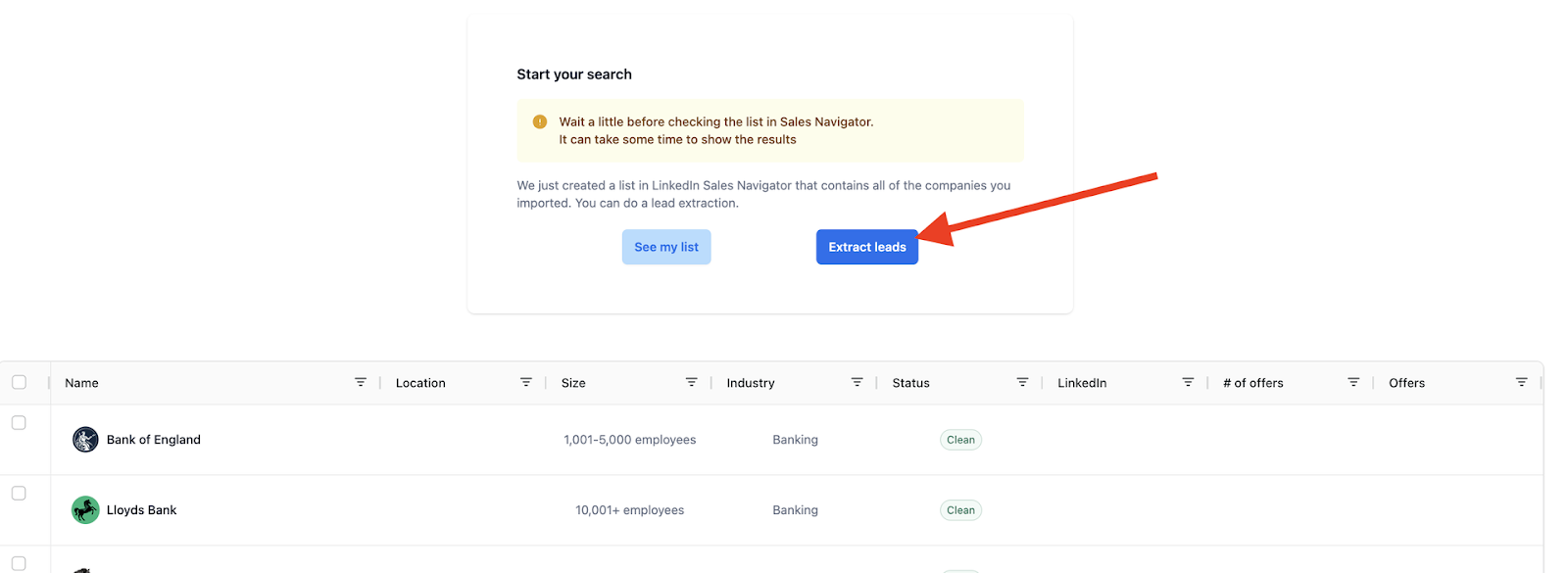
6. Now, all that’s left is to extract the leads! 🚀
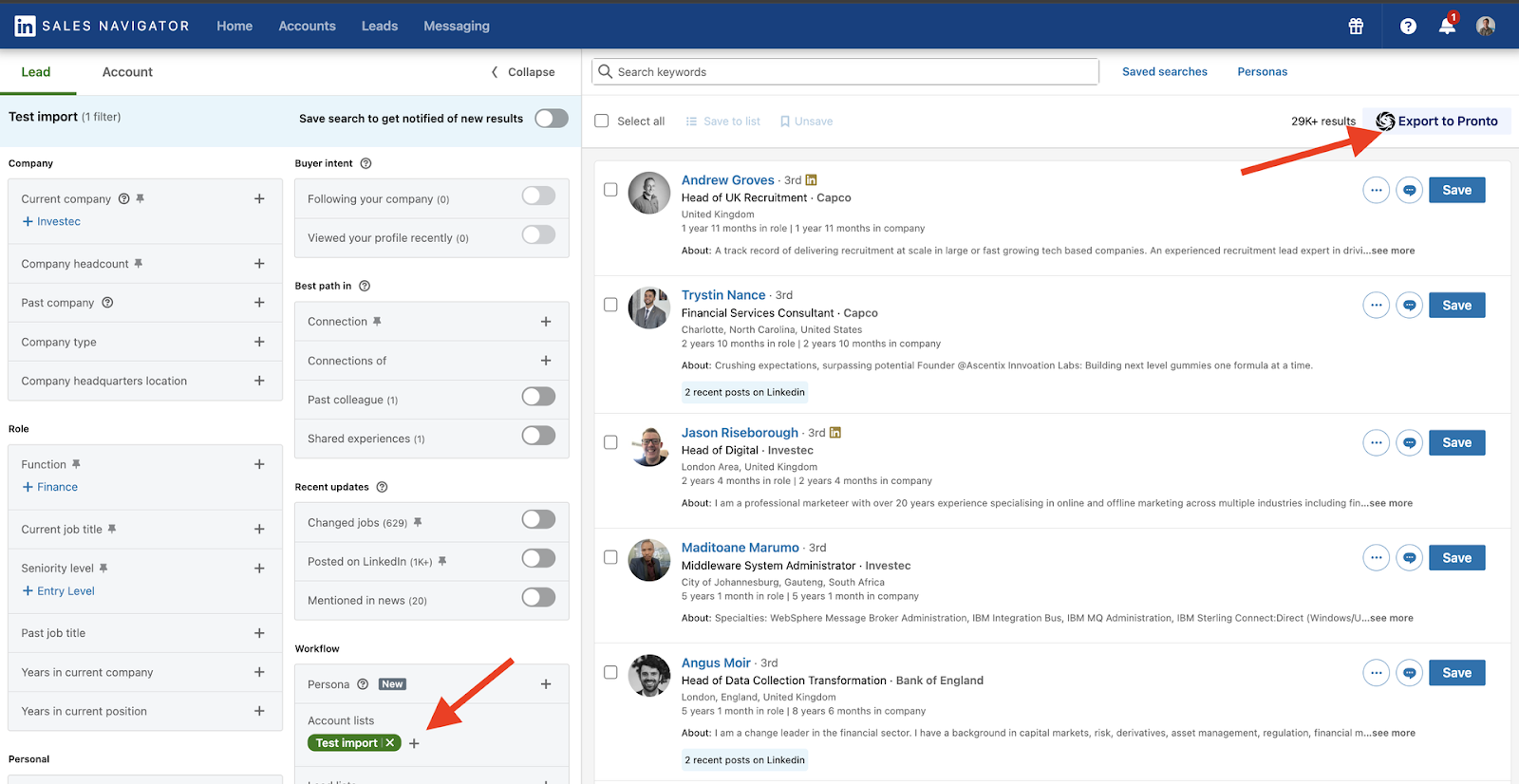

🔥 Why Pipecorn rocks:
- Cleaner, smarter data.
- More ways to target decision-makers.
- You’ll feel like a data wizard. 🧙♀️
How to Upload Leads csv into Sales Navigator?
1/ Import leads with Sales Navigator Advanced
🚨 Spoiler Alert: You can’t.
Yes, you read that right. You can’t import a CSV of leads directly into Sales Navigator Advanced. 🫠 This is one of those moments where LinkedIn says, “Sorry, not happening!”

But don’t worrywe’re not here to leave you stuck! While LinkedIn drops the ball on this feature, Pipecorn is here to save the day. 🚀
2/ Import leads with Pipecorn [Smarter]
Now let’s talk about how Pipecorn makes the impossible possible. Ready to see some magic? Here’s your step-by-step guide:
Pipecorn simplifies the process of uploading lead lists into LinkedIn Sales Navigator with its efficient and user-friendly CSV file upload feature. Here's how to get started:
1. Log into Pipecorn
- Access your Pipecorn dashboard and navigate to the upload feature for lead lists.
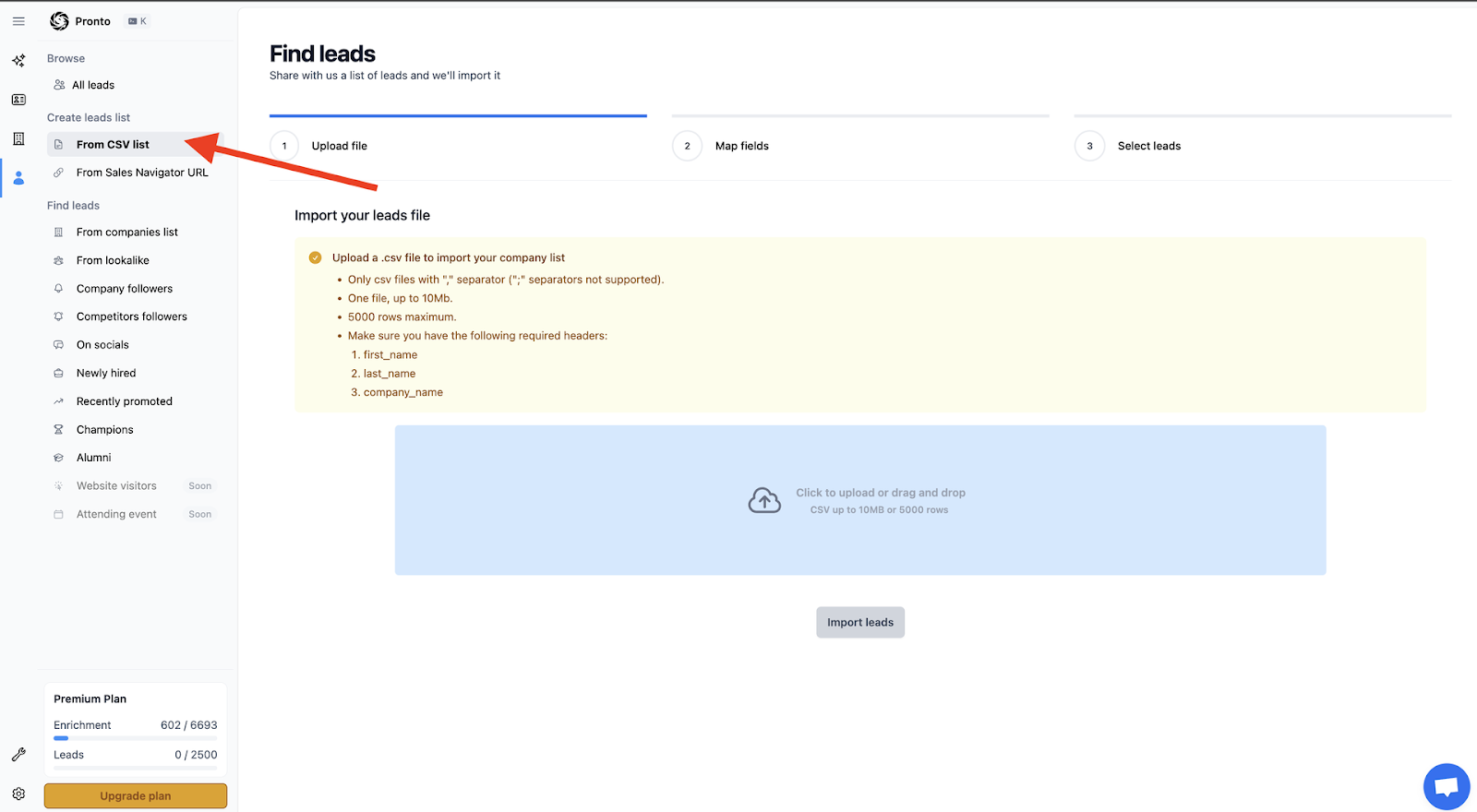
2. Prepare Your Lead CSV File
- Use a template CSV file to structure your data correctly.
- Include the necessary fields (see the next section for required and optional fields).
- Ensure your file is saved in CSV format and meets file size requirements.

3. Upload Your File
- Select your prepared lead CSV file from your device.
- Map the columns to match fields such as Last Name, First Name, and LinkedIn URL.
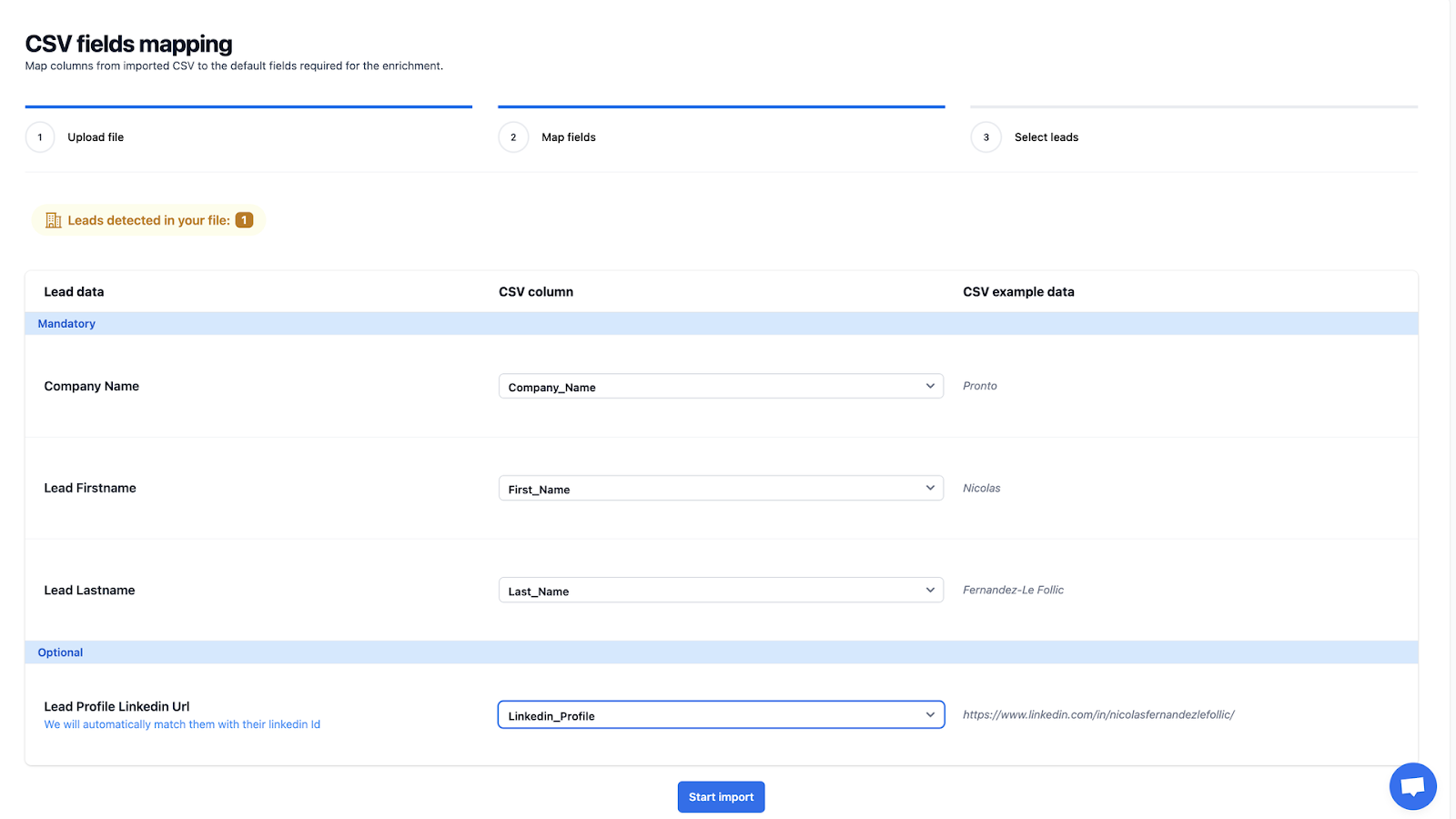
4. Automated Matching
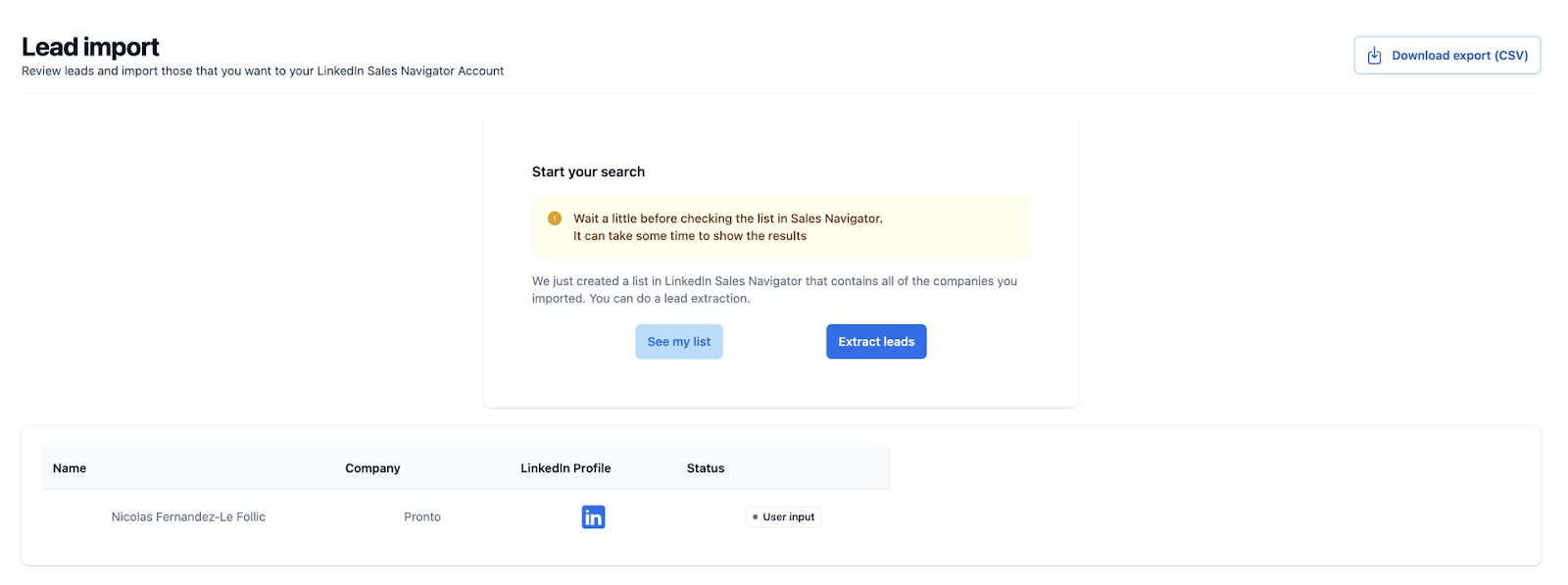
- Pipecorn automatically matches leads to their LinkedIn profiles using the provided LinkedIn URLs or other data points, ensuring accuracy.
- Then Extract Leads on Linkedin Sales Navigator
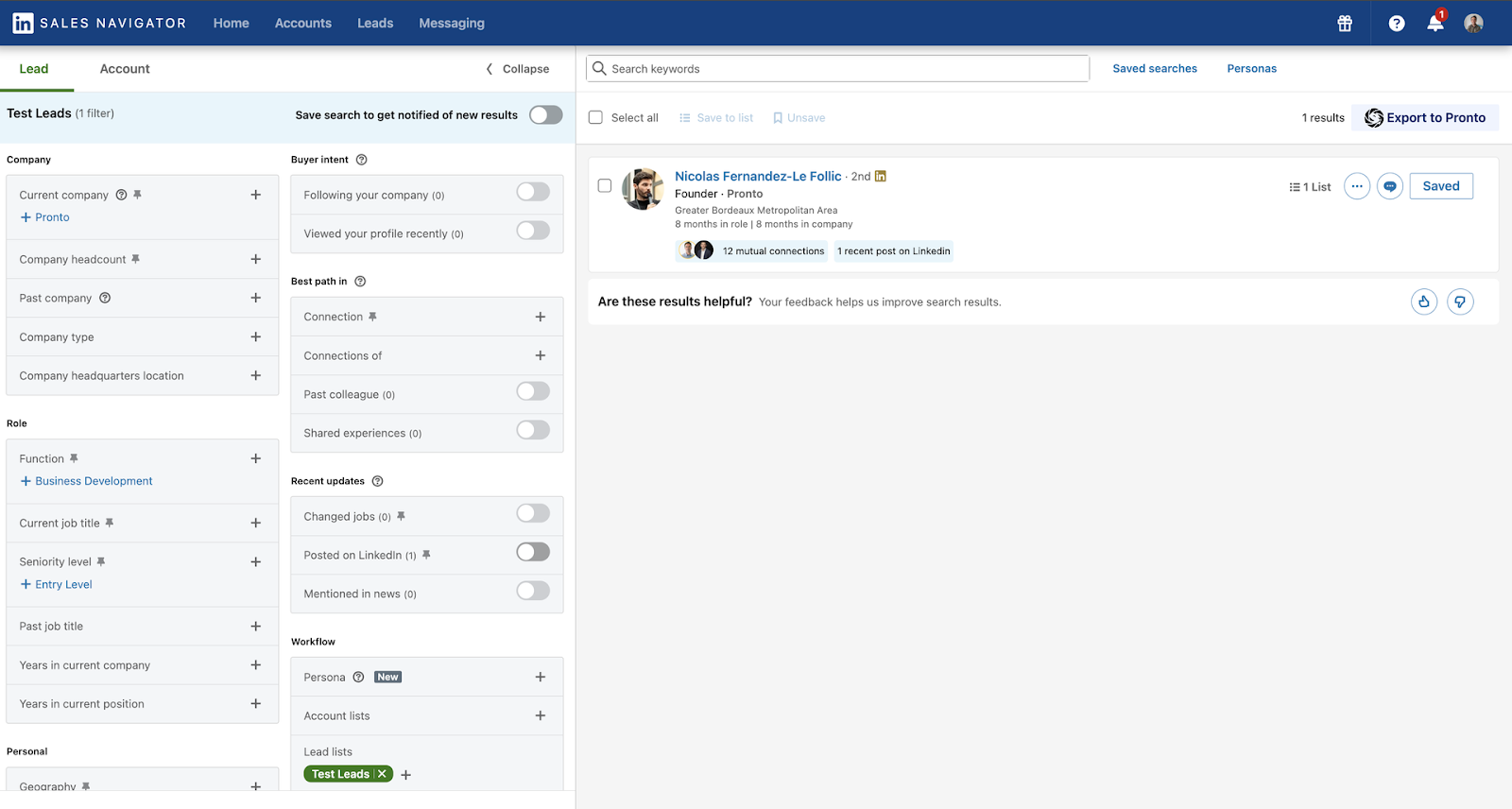
5. Complete the Upload
- Finalize the mapping and sync the data seamlessly with LinkedIn Sales Navigator for immediate use.

Conclusion
Whether you're importing leads or accounts, LinkedIn Sales Navigator has its limitations. But that’s where Pipecorn shines making your life easier, faster, and smarter. 🚀
No more tedious scraping or endless manual work. With Pipecorn, you get enriched data, seamless imports, and all the tools you need to dominate your prospecting game. 💼
Ready to take your prospecting to the next level? The choice is clear: Pipecorn. Let’s make it happen. 💪✨