Invite Team Members to Sales Navigator
Boost your sales team with LinkedIn Sales Navigator: 7 expert tips to invite team members, manage users, and maximize your network.


On this page
- 01How to invite team members on LinkedIn?
- 02What is the weekly invitation limit?
- 03How to manage users in Sales Navigator?
- 04What are best practices for connection requests?
- 05How to use TeamLink on LinkedIn?
- 06How to increase profile views on LinkedIn?
- 07What features does LinkedIn Sales Navigator offer?
Invite your team members to collaborate on LinkedIn Sales Navigator and boost your team's efficiency. Here's what you'll learn:
✅ How to invite team members on LinkedIn
✅ Understanding weekly invitation limits
✅ Best practices for connection requests
✅ Tips to increase profile views
Let's get started!

How to invite team members on LinkedIn?
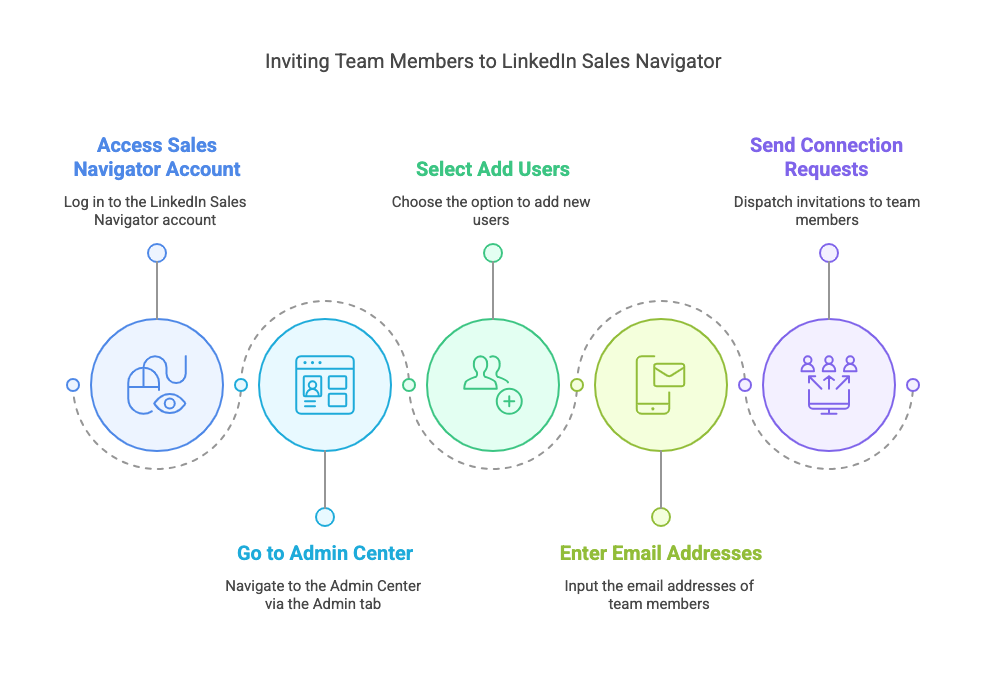
Want your team to use LinkedIn Sales Navigator for better sales efforts? First, they need access. Here’s how to add users and get everyone on board:
1️⃣ Access your LinkedIn account: Log in to your LinkedIn account.
2️⃣ Go to the Admin Center: Click on the "For Business" grid to access the Account Center.
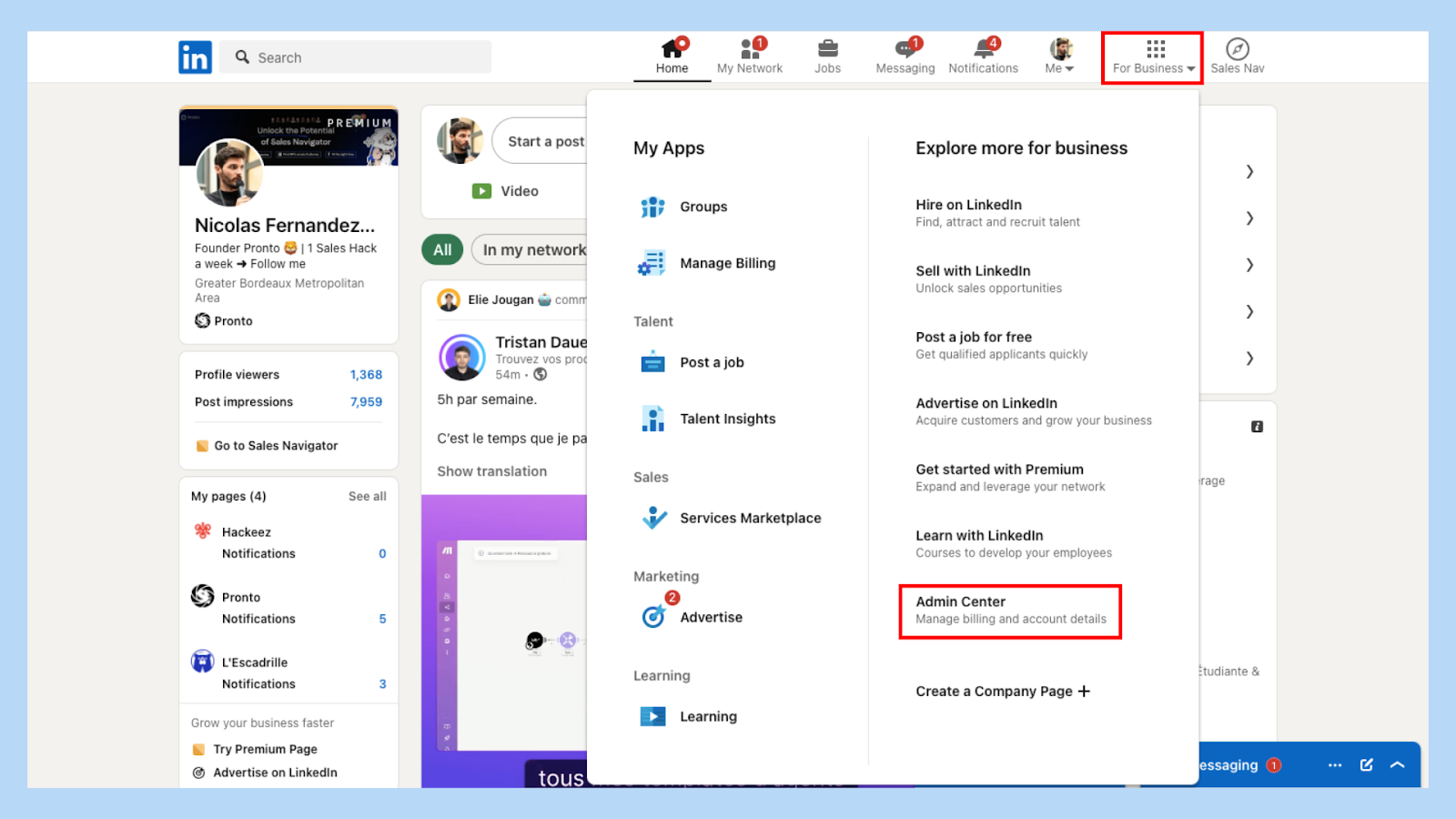
3️⃣ Invite people: Select "Add Users" and enter the email addresses of your team members.
4️⃣ Send a connection request: Click "Send" to invite them to join your Sales Navigator team.
Once your team members accept the invitation, they’ll have full access to Sales Navigator features. Personalize your connection request message and explain the benefits of joining your Sales Navigator team to increase the acceptance rate.
Pro Tip: Show team members how Sales Navigator gives them real-time lead updates, making it easier to engage with prospects at the right moment.
What is the weekly invitation limit?
LinkedIn limits invite requests to 100 per week to prevent spam. That means you need to be strategic:
✅ Focus on high-value prospects.
✅ Monitor your acceptance rate.
✅ Avoid sending too many requests at once.
Hit the limit? You’ll have to wait for next week to send more LinkedIn connection requests.
Pro Tip: Regularly check your pending invites. If someone hasn’t accepted after a week or two, withdraw and reallocate.
How to manage users in Sales Navigator?
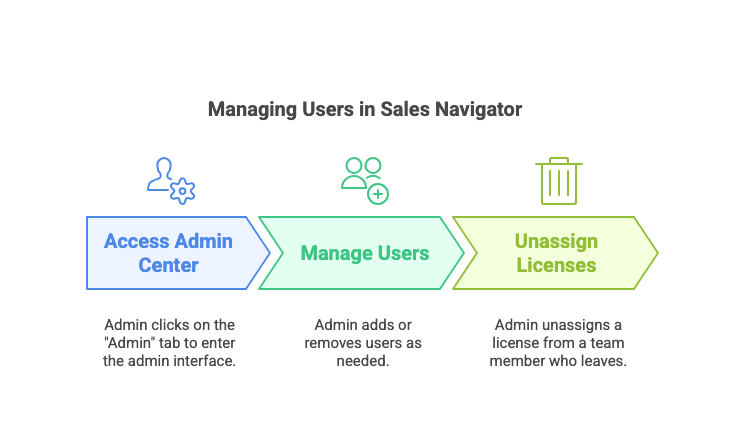
As an admin, keeping your team organized is simple. Here’s how:
1️⃣ Access the Admin Center: From your Sales Navigator screen, tap on the "Admin" tab.
2️⃣ Manage users: In the admin experience, you can add or remove users as needed.
3️⃣ Unassign licenses: If a team member leaves, you can unassign their license to free it up for someone else.
This ensures your team stays up-to-date and every Sales Navigator license is used efficiently.
Pro Tip: Monitor team activity. If someone isn’t using Sales Navigator, they might need a quick training session.
What are best practices for connection requests?
Want more accepted invites? Don’t just hit "Connect" put in some effort. Here are some best practices to improve your success rate:
✅ Personalized messages: Always include a personalized connection request message.
✅ Be genuine: Show genuine interest in connecting.
✅ Keep it concise: A short message is often more effective.
Try this template:
💬 "Hi [Name], I’ve been following your work in [Industry/Field] and would love to connect to share insights."
Pro Tip: Tailor your message based on the person's profile mentioning a mutual connection or recent post they shared boosts your acceptance rate.
How to use TeamLink on LinkedIn?
TeamLink helps you leverage your team’s network to find warm leads for better outreach.
Here’s how to use the TeamLink filter:
1️⃣ Access Advanced Search: Go to the Sales Navigator search screen.
2️⃣ Apply TeamLink filter: Select the TeamLink network filter to see prospects connected to your team.
3️⃣ Leverage mutual connections: Identify prospects with whom your team has mutual connections.
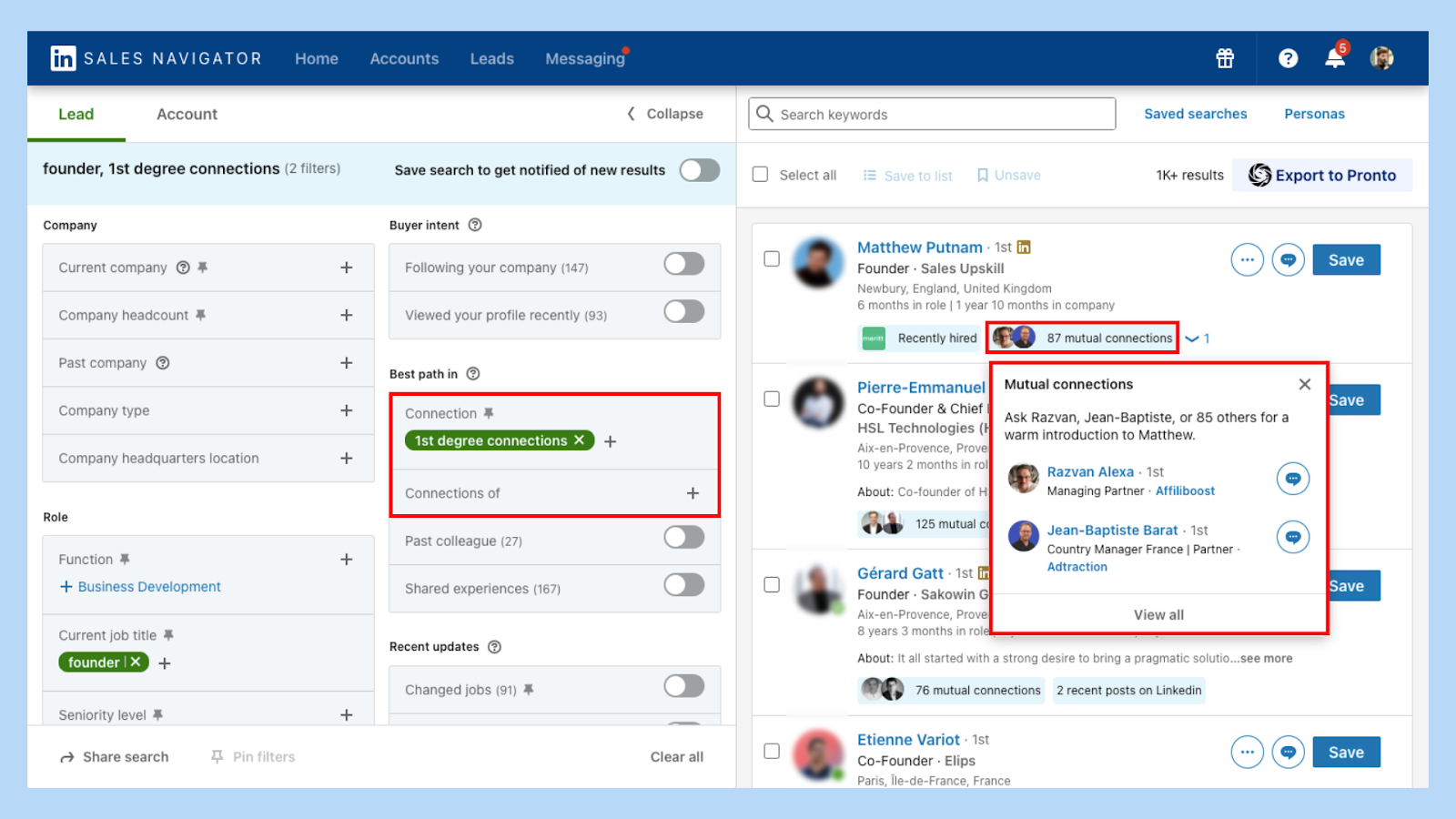
Pro Tip: Work with your team. If someone has a connection, ask them for a warm introduction it beats cold outreach any day.
How to increase profile views on LinkedIn?
More profile views = More opportunities. Here’s how to boost your profile visibility:
✅ Engage in professional networking: Connect with industry professionals.
✅ Expand your network size: The larger your network, the more visible you become.
✅ Enhance outreach efforts: Share valuable content and engage with others' posts.
The more people see your profile, the more chances you have to build credibility and attract the right prospects to reach your lead generation goals.
Pro Tip: Keep your profile up-to-date to reflect your current role. A fresh headline and recent achievements make a big difference.
What features does LinkedIn Sales Navigator offer?
LinkedIn Sales Navigator gives you access to features designed for sales professionals. Here’s what you get:
With premium features like advanced filters, team collaboration, and CRM integration, Sales Navigator helps streamline your workflow.
Pro Tip: Tools like Pipecorn help you scrape profiles on LinkedIn Sales Navigator data efficiently. More insights, better decisions.
Ready to take your sales game to the next level? Learn more about what is LinkedIn Sales Navigator and how it can benefit your team.
Stay active. Stay connected. Keep growing!